

From SharePoint Lists to Intelligent Apps: Exploring SharePoint Skills with Microsoft 365 Copilot
Introduction
For years, SharePoint Lists have been one of the simplest ways to build lightweight business solutions in Microsoft 365. Organizations use them for project tracking, issue management, employee requests, asset registers, onboarding, approvals, inventories, and hundreds of other scenarios.
However, the user experience has traditionally remained centered around a list. If a richer experience was required, organizations typically moved toward Power Apps, SPFx, Power Automate, or a custom application.
The arrival of Copilot in SharePoint and SharePoint Skills introduces an interesting new direction.
Instead of asking users to understand the structure of a SharePoint List, views, filters, columns, and forms, we can increasingly allow Copilot to understand the business process and help users interact with SharePoint information through natural language and dynamically generated experiences.
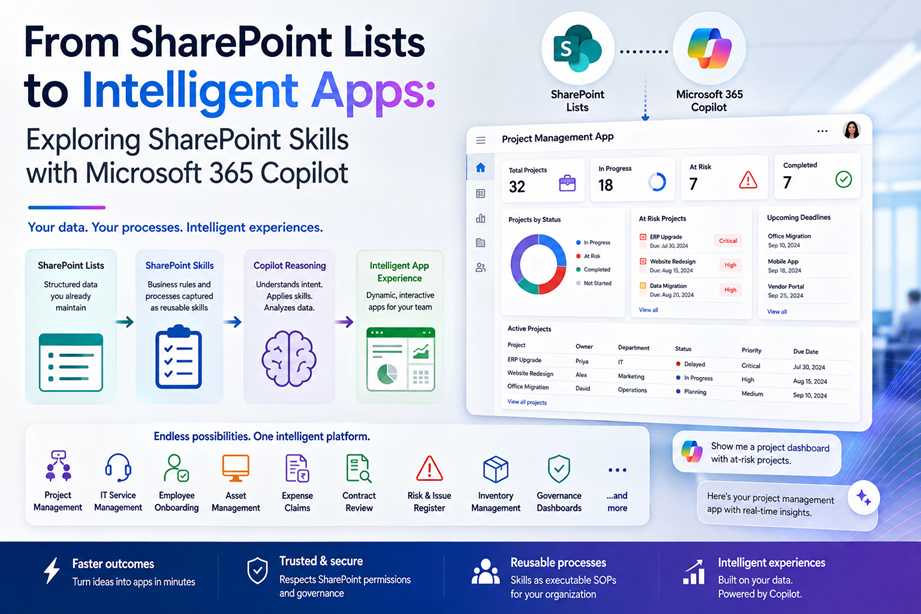
A great example is the demonstration “Turn SharePoint Lists into Live Apps with Copilot.” It shows an important idea: existing structured SharePoint data can become the foundation for a much richer application experience rather than remaining only a traditional list.
This article explores SharePoint Skills, how this pattern works, and—more importantly—what else organizations could potentially build with it.
What Are SharePoint Skills?
SharePoint Skills extend Copilot in SharePoint by converting a repeatable, multi-step process into a reusable capability.
Instead of repeatedly giving Copilot a long prompt such as:
Review these project records, identify overdue items, group them by owner, calculate the number of high-priority issues, and prepare a status summary.
you can define that process once as a Skill.
Later, users can simply ask Copilot to run the skill.
Microsoft describes a SharePoint Skill as a reusable asset that captures organization-specific instructions, rules, and workflows. Copilot can automatically select an appropriate Skill based on the user’s request, or the user can explicitly invoke one by name.
Conceptually:
Prompt → Instructions → Skill → Repeatable business capability
This is an important evolution because Copilot is no longer limited to answering questions about SharePoint content.
It can start participating in structured business processes.
How SharePoint Skills Work
A SharePoint Skill is essentially a set of instructions that tells Copilot how a particular task should be performed.
Behind the scenes, Skills are stored as Markdown files in the site’s Agent Assets library using a structure similar to:
/Agent Assets/Skills/<skill-name>/SKILL.md
Microsoft confirms that these Skill definitions can be created through natural-language conversations with Copilot and then reviewed before being saved.
A simplified Skill might conceptually contain instructions such as:
Name: Project Status Dashboard

When the user asks for project status:

1. Read items from the Project Tracker list.
2. Identify projects where Status is not Completed.
3. Highlight projects past their target completion date.
4. Group projects by project manager.
5. Calculate the number of projects by status.
6. Present the information in an easy-to-understand format.
7. Allow the user to investigate individual project records.
Instead of every employee having to understand the list structure and formulate the correct prompt, the business knowledge is encoded inside the Skill.
This creates an interesting architectural pattern:
SharePoint data + business instructions + Copilot reasoning = reusable business experience
SharePoint Skills Are More Than Saved Prompts
It would be easy to think of Skills as sophisticated prompt templates.
They are more significant than that.
Microsoft describes Skills as being able to reuse capabilities already available through Copilot in SharePoint and combine them into sequences of steps. Depending on the capabilities available on the site, Skills can understand and summarize content, organize files and folders, and interact with SharePoint content such as Lists.
A normal prompt might say:
Show me overdue projects.
A Skill could represent the organization’s actual definition of an overdue project:
Find active projects where:

Target Date < Today

AND

Status is not Completed or Cancelled.

For each project:
- Show owner
- Show priority
- Calculate days overdue
- Highlight Critical projects
- Group results by department
The difference is subtle but important.
The prompt describes what the user wants now.
The Skill describes how the organization expects that task to be performed every time.
That makes Skills particularly useful for implementing business rules, SOPs, review processes, and repeatable information-processing tasks.
Turning a SharePoint List into a Live Application Experience
This is where the scenario demonstrated in the video becomes particularly interesting.
Consider a traditional SharePoint List used for project tracking.
The list might contain:
| Project | Owner | Department | Status | Priority | Due Date |
|---|---|---|---|---|---|
| Website Redesign | Alex | Marketing | In Progress | High | Aug 15 |
| ERP Upgrade | Priya | IT | Delayed | Critical | Jul 30 |
| Office Migration | David | Operations | Planning | Medium | Sep 10 |
Traditionally, employees interact with this information through:
SharePoint List → Views → Filters → Forms
A user needs to understand where the list is located and how it is structured.
With Copilot and Skills, the interaction model can become:
User intent → Copilot → Skill → SharePoint data → interactive experience
For example:
Show me a project management app for our active projects.
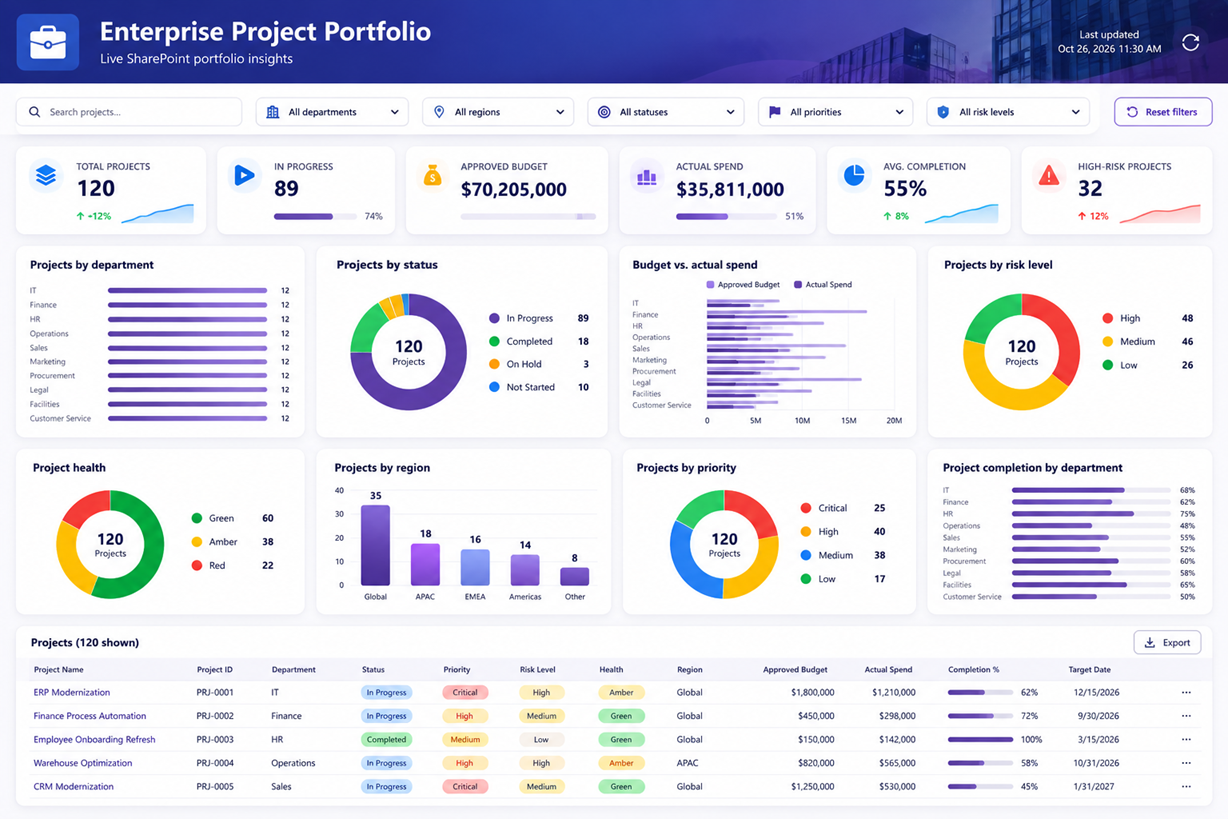
Instead of merely returning rows of data, the experience can potentially be presented as a more application-like interface containing things such as status cards, filtered records, project details, charts, search controls, navigation, and actions.
The SharePoint List remains the system of record, while AI becomes an intelligent experience layer over the information.
That distinction is important.
The value is not necessarily replacing SharePoint Lists.
It is making the underlying SharePoint information far easier for users to consume and work with.
Why This Is Important
Enterprise applications traditionally require developers to translate business requirements into user interfaces.
For example:
Business requirement
We need a dashboard where managers can see open requests by department and quickly identify requests that have breached SLA.
Traditionally, this might lead to:
SharePoint List → Power Apps / SPFx → custom UI → testing → deployment
With generative AI, we are moving toward:
SharePoint List → Describe desired experience → AI creates experience
The user’s intent increasingly becomes part of the application definition.
This could dramatically reduce the effort required to prototype lightweight business applications.
Scenario 1: Project Management App
Imagine an organization already maintains a SharePoint List called Projects.
Instead of asking employees to navigate the list, we could provide an experience where they ask:
Show me our project dashboard.
The Skill could instruct Copilot to:
- Retrieve active projects.
- Group projects by status.
- Identify overdue projects.
- Highlight critical projects.
- Calculate project statistics.
- Present project information clearly.
- Allow users to drill into individual projects.
A project manager could then ask:
Show only projects assigned to me.
or:
Which projects are at risk this month?
The same underlying data can therefore support multiple dynamically generated experiences.
Scenario 2: IT Service Request Application
Consider a SharePoint List containing:
- Ticket Number
- Requester
- Category
- Priority
- Assigned Engineer
- Status
- Created Date
- SLA Date
A SharePoint Skill could define how an IT support dashboard should work.
A support manager might ask:
Open the IT service dashboard.
The experience could organize information around:
- Open Tickets
- Critical Tickets
- SLA Breaches
- Tickets by Engineer
- Tickets by Category
Users could then continue conversationally:
Show only critical incidents.
Show tickets assigned to John.
Which requests will breach SLA today?
This combines the strengths of structured SharePoint data and conversational AI.
Scenario 3: Employee Onboarding Tracker
Many organizations manage employee onboarding using SharePoint Lists.
The list might contain:
- Employee
- Department
- Joining Date
- Manager
- Laptop Status
- Account Status
- Security Training
- Orientation
- Overall Status
A SharePoint Skill could understand the organization’s onboarding process.
HR could ask:
Show employees joining this week who aren’t ready.
The Skill could determine that “not ready” means:
Laptop Status != Ready
OR
Account Status != Created
OR
Security Training != Assigned
The result could be presented as an onboarding dashboard rather than requiring HR to manually configure multiple list filters.
Scenario 4: Asset Management
A SharePoint List might contain:
- Asset ID
- Device Type
- Employee
- Location
- Purchase Date
- Warranty Expiration
- Status
Users could ask:
Show me the IT asset management app.
The resulting experience could focus on:
- Total assets
- Assigned assets
- Available assets
- Devices with expiring warranties
- Assets by location
- Assets by device type
A manager could then ask:
Show laptops whose warranty expires in the next 60 days.
The Skill provides the reusable business logic while Copilot handles the interaction.
Scenario 5: Expense Claims
Consider an Expense Claims list containing:
- Employee
- Expense Type
- Amount
- Submitted Date
- Manager
- Status
- Receipt
- Comments
Instead of opening the list, employees could ask:
Show my expense claims.
A richer experience could organize the records by:
- Pending
- Approved
- Rejected
and provide summary information such as:
- Total submitted: ₹42,500
- Pending: ₹8,200
- Approved: ₹31,300
- Rejected: ₹3,000
The employee could continue:
Show only claims pending for more than five days.
This demonstrates an important concept: the application interface can increasingly respond to the user’s intent rather than forcing the user to navigate predefined views.
Scenario 6: Contract Review
Skills become even more interesting when SharePoint Lists and document libraries are used together.
Microsoft provides an example where a Skill reviews legal contracts, checks whether they contain an attorney ID in the required format, and records invalid contracts in a SharePoint List.
Imagine a Contracts library containing thousands of documents.
A Skill could:
- Review selected contracts.
- Extract important information.
- Validate required information.
- Identify missing clauses.
- Record exceptions in a SharePoint List.
- Provide a summary of the findings.
The resulting SharePoint List could then become an exception-management application.
This creates a powerful pattern:
Documents → AI analysis → Structured List → Interactive experience
Scenario 7: Knowledge Base Health Dashboard
Consider a SharePoint knowledge portal containing hundreds of articles.
A Skill could examine:
- Last modified date
- Article owner
- Review date
- Category
- Content status
It could identify:
- Articles older than 12 months
- Articles requiring review
- Missing owners
- Duplicate or overlapping information
- Potential content gaps
Copilot in SharePoint already includes capabilities for improving sites by identifying inactive pages, content gaps, and broken links.
Combining these capabilities with Skills could make content governance a repeatable business process rather than an occasional manual exercise.
Scenario 8: Inventory Management
Imagine a SharePoint List used by an office or small warehouse:
| Product | Category | Stock | Minimum Stock | Location |
|---|---|---|---|---|
| Laptop | Hardware | 24 | 10 | Mumbai |
| Monitor | Hardware | 8 | 15 | Pune |
| Keyboard | Accessory | 35 | 20 | Mumbai |
A Skill could understand the rule:
If Stock < Minimum Stock,
consider the item Low Stock.
A user could simply ask:
Show the inventory dashboard.
Then:
Show products that need restocking.
or:
Which location has the most low-stock products?
This eliminates the need for users to understand SharePoint filtering syntax.
Scenario 9: Risk and Issue Register
Project Management Offices frequently maintain SharePoint Lists for risks.
Columns might include:
- Risk
- Project
- Probability
- Impact
- Risk Score
- Owner
- Mitigation
- Status
A Skill could contain the organization’s risk-management methodology.
For example:
Risk Score = Probability × Impact

1–4 = Low
5–9 = Medium
10–15 = High
16–25 = Critical
A manager could ask:
Show the portfolio risk dashboard.
The same Skill ensures that every manager sees risks interpreted using the organization’s standard methodology.
This is where Skills become more valuable than generic prompting: business rules become reusable AI instructions.
Scenario 10: SharePoint Governance Dashboard
SharePoint administrators could also use the same concept for governance data maintained in Lists.
Imagine a Site Inventory list containing:
- Site URL
- Business Owner
- Department
- Storage
- External Sharing
- Last Activity
- Review Date
- Lifecycle Status
A governance Skill could help answer questions such as:
Show sites without an owner.
Find sites that haven’t been reviewed in six months.
Show externally shared sites belonging to Finance.
Identify inactive sites that should be reviewed for archiving.
The same pattern could support a lightweight SharePoint Governance application.
Beyond Lists: Document Libraries Become Intelligent Data Sources
The possibilities are not limited to SharePoint Lists.
Copilot in SharePoint can already work with documents and help summarize files, compare documents, generate FAQs, create metadata, create views, and support workflows.
For example, imagine a Procurement library.
Documents could include:
- Vendor proposals
- Contracts
- Statements of work
- Quotations
- Security assessments
AI-generated metadata could extract:
- Vendor
- Contract Value
- Expiration Date
- Region
- Contract Type
- Risk Level
SharePoint’s autofill-column capability can create metadata columns based on file content, allowing information to be filtered, grouped, and managed without requiring users to manually enter every field.
A Skill could then use that structured metadata to provide an application-like procurement experience.
This creates another interesting architecture:
Documents → AI-generated metadata → SharePoint structure → Skill → User experience
Skills as Digital Standard Operating Procedures
One of the most compelling enterprise applications of SharePoint Skills may have nothing to do with dashboards.
Skills can become executable Standard Operating Procedures (SOPs).
Today, an organization might have a Word document called:
Vendor-Onboarding-Procedure.docx
It might contain 20 steps explaining how employees should validate a new supplier.
The employee reads the document and manually performs the process.
With Skills, the organization could translate parts of that procedure into reusable instructions.
For example:
Vendor Onboarding Skill

1. Check whether required vendor information exists.
2. Verify required documents.
3. Check whether the NDA is available.
4. Verify tax documentation.
5. Identify missing information.
6. Record validation results.
7. Produce an onboarding readiness summary.
Instead of merely reading the SOP, employees can ask Copilot to apply the SOP.
That represents a major shift:
Knowledge document → AI-readable instruction → executable organizational knowledge
A New Layer in the SharePoint Architecture
Historically, a SharePoint solution might look like:
User
  ↓
SharePoint Page
  ↓
List / Library
  ↓
Power Automate
A more AI-oriented architecture could look like:
                 User
                   ↓
            Natural Language
                   ↓
        Copilot in SharePoint
                   ↓
            SharePoint Skill
                   ↓
       Business Rules / Process
                   ↓
        ┌──────────┴──────────┐
        ↓                     ↓
 SharePoint Lists      Document Libraries
        ↓                     ↓
 Structured Data          Documents
The Skill becomes an intelligence layer between the user and SharePoint content.
Skills vs SharePoint Agents
SharePoint Skills and SharePoint agents solve different problems.
A useful way to think about them is:
| Capability | SharePoint Agent | SharePoint Skill |
|---|---|---|
| Answer questions | Excellent | Possible as part of workflow |
| Search knowledge | Primary purpose | Supporting capability |
| Reusable instructions | Limited | Yes |
| Multi-step process | Limited | Primary purpose |
| Business rules | Limited | Yes |
| Interact with Lists | Knowledge-oriented | Process-oriented |
| Repeatable workflow | No-code Q&A experience | Yes |
| Best use | Understand information | Perform a process |
In simple terms:
Agent = “What do we know?”
Skill = “How do we do this?”
Together, they become much more powerful.
Skills vs Power Automate
Skills should also not be viewed as a replacement for Power Automate.
Power Automate remains better suited for deterministic automation such as:
When item created
        ↓
Send approval
        ↓
Wait for response
        ↓
Update SharePoint
        ↓
Send notification
A Skill is better suited to user-driven, reasoning-heavy processes such as:
User asks Copilot
        ↓
Skill interprets request
        ↓
Analyze SharePoint information
        ↓
Apply business rules
        ↓
Generate result
A useful rule is:
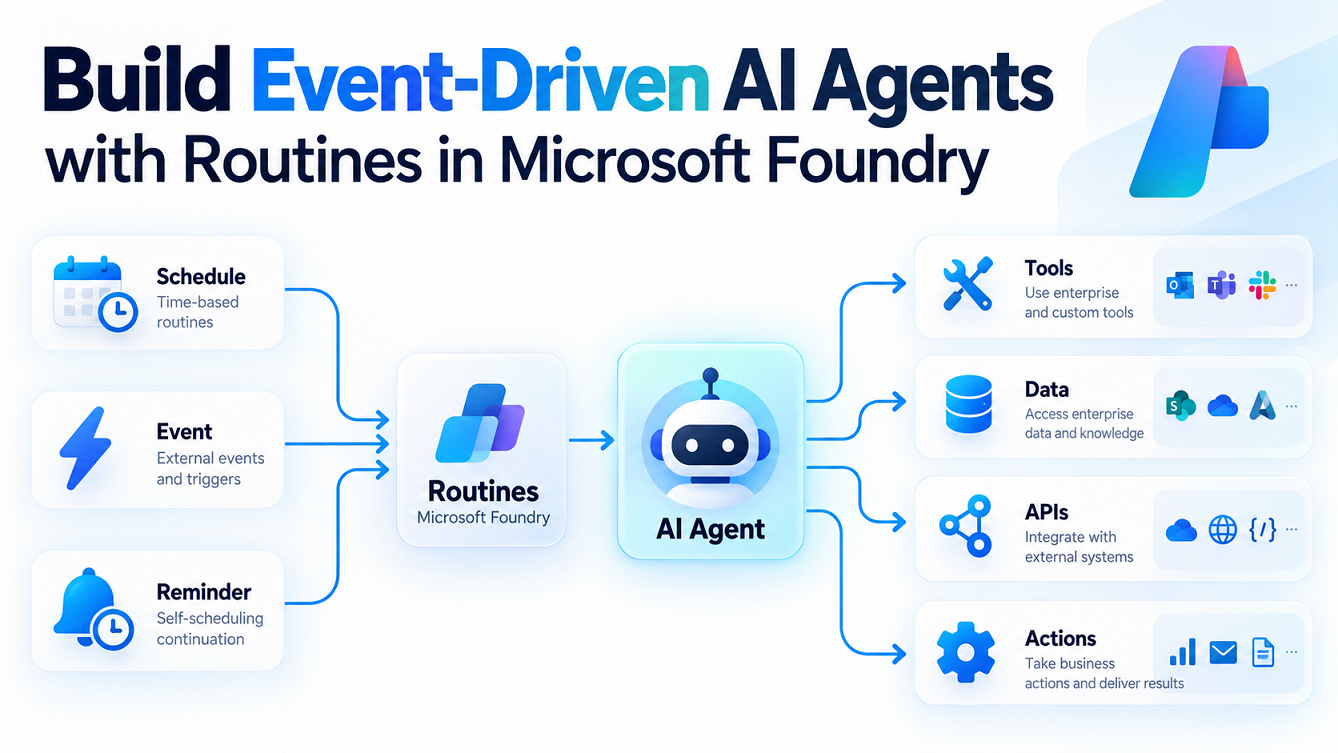
Power Automate = Event-driven automation
SharePoint Skill = Intent-driven AI workflow
Organizations will likely use both together rather than choosing one over the other.
Skills vs Power Apps
Power Apps remains the better choice when an organization needs a predictable, formally designed application with complex forms, validation, navigation, integrations, offline behavior, or tightly controlled UI.
SharePoint Skills are attractive when the requirement is more dynamic.
For example:
Power Apps approach
Requirement
    ↓
Design screens
    ↓
Create controls
    ↓
Connect data
    ↓
Write formulas
    ↓
Test
    ↓
Publish
AI + Skills approach
Business intent
       ↓
Describe desired workflow
       ↓
Copilot + Skill
       ↓
Dynamic experience
This could dramatically shorten the journey from idea to prototype.
Where SharePoint Skills Fit
A useful decision model is:
| Requirement | Recommended Technology |
|---|---|
| Ask questions about documents | SharePoint Agent |
| Repeatable AI workflow within a SharePoint site | SharePoint Skill |
| Scheduled/event-driven automation | Power Automate |
| Structured business application | Power Apps |
| Highly customized SharePoint UI | SPFx |
| Cross-system conversational agent | Copilot Studio |
| Lightweight intelligent experience over SharePoint information | SharePoint Skills + Copilot |
The important point is that Skills do not replace the Microsoft 365 development stack.
They add another lighter, AI-native development layer.
Security and Permissions
One particularly important aspect of SharePoint Skills is that they do not create a new security model.
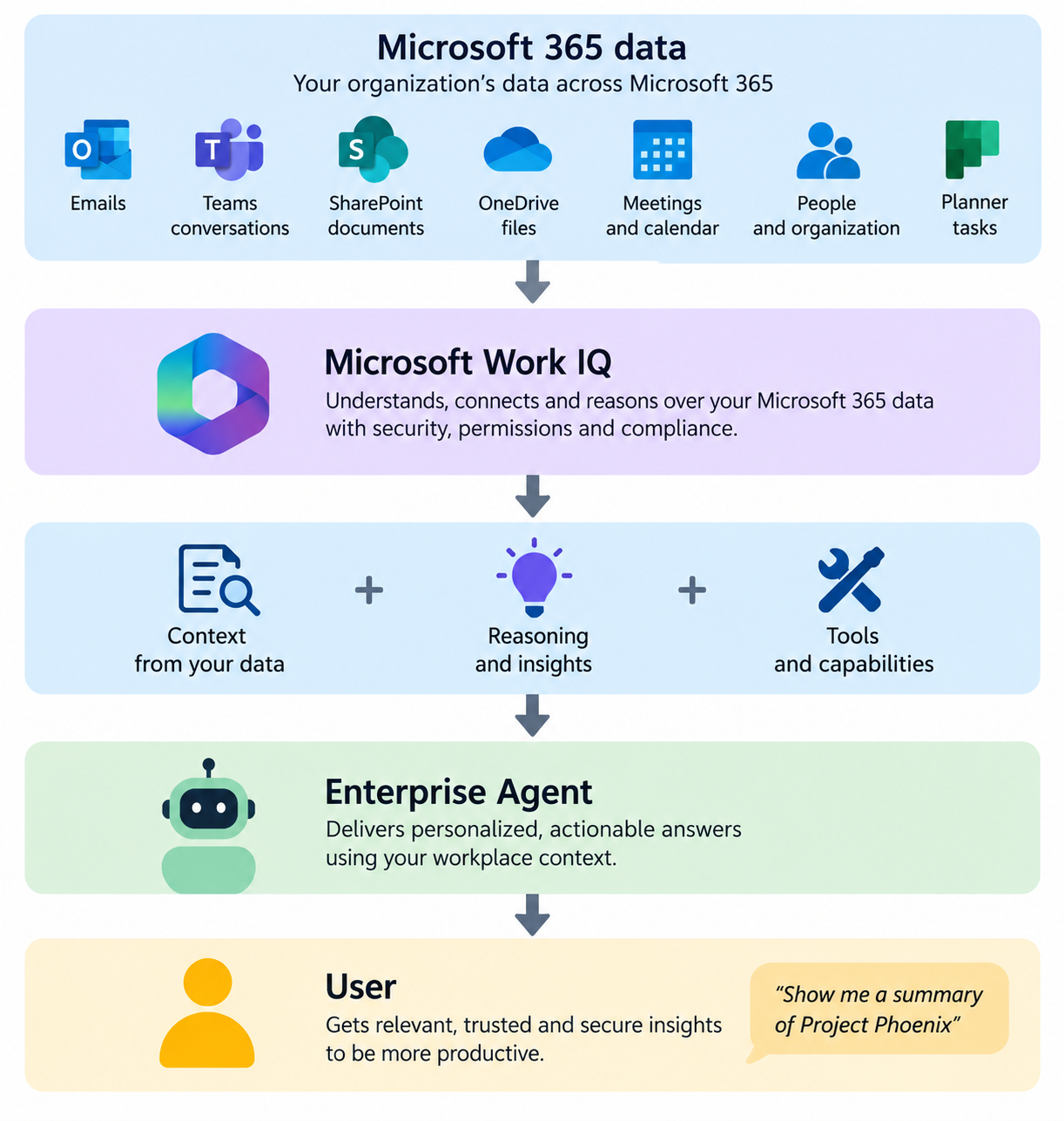
According to Microsoft, a Skill can perform only operations that the current user already has permission to perform. Skills do not extend the user’s access.
Therefore:
User permissions
       ↓
SharePoint security
       ↓
Copilot
       ↓
Skill
       ↓
Allowed operations
A Skill cannot simply bypass SharePoint permissions to retrieve restricted information.
This is important when building applications over sensitive Lists or libraries.
Governance of Skills
Skills themselves should eventually be treated as organizational assets.
Because Skills are stored in SharePoint’s Agent Assets library, normal SharePoint governance mechanisms can be applied to them. Microsoft specifically notes that permissions, retention, sensitivity labels, and auditing can be applied to Skill files.
Organizations should therefore consider governance around:
- Who can create Skills?
- Who reviews them?
- Who can modify them?
- Which Skills are production-approved?
- Who owns each Skill?
- How are changes tested?
- How are business rules documented?
- How are obsolete Skills retired?
This becomes particularly important when Skills start encoding business processes.
Important Current Limitations
There are also boundaries to understand.
Microsoft currently states that SharePoint Skills cannot connect directly to external systems or execute custom code. Skills operate using capabilities already available through Copilot in SharePoint.
Therefore, a Skill should not currently be treated as a replacement for:
- Azure Functions
- Custom APIs
- SPFx
- Power Platform connectors
- Complex Power Automate integrations
- Copilot Studio actions
For example, a Skill could work very well for analyzing a vendor list stored in SharePoint.
If the process needs to query SAP, update Salesforce, call an external REST API, and then create a ServiceNow ticket, Copilot Studio, Power Automate, or custom development would be more appropriate.
The Bigger Possibility: SharePoint as an AI Application Platform
This capability suggests a larger evolution of SharePoint.
SharePoint originally evolved from:
Document Management
to:
Collaboration Platform
then:
Content and Intranet Platform
and increasingly toward:
AI-powered knowledge and application platform
The building blocks already exist:
SharePoint Lists
        +
Document Libraries
        +
Metadata
        +
SharePoint Pages
        +
Copilot
        +
Agents
        +
Skills
        +
Power Platform
Together, these components can support a new generation of lightweight enterprise applications.
Instead of building every application from scratch, organizations may increasingly start with the information they already maintain in Microsoft 365 and allow AI to provide the interaction layer around it.
From Static Applications to Intent-Driven Applications
Perhaps the most interesting idea behind this capability is the possibility of intent-driven applications.
Traditional applications decide the interface before the user arrives.
The developer creates:
Dashboard
Reports
Filters
Forms
Buttons
Navigation
Every user receives approximately the same application.
With AI-driven experiences, the interface can potentially adapt to the question.
A project manager asks:
Show projects at risk.
A finance manager asks:
Show projects exceeding their budget.
An executive asks:
Give me an overall portfolio summary.
All three requests could operate on the same SharePoint data, but produce different experiences.
That changes the application model from:
One predefined UI → many users
to:
One trusted data source → many dynamically generated experiences
This may become one of the most important implications of generative AI for enterprise application development.
Where Organizations Should Start
Organizations should not immediately try to replace every Power App with a Skill.
A better approach is to identify processes where three things already exist:
- Structured SharePoint information
- A repeatable business process
- Users repeatedly filtering, interpreting, or summarizing the same information
Good pilot candidates include:
- Project trackers
- Issue registers
- Knowledge-base reviews
- Employee onboarding
- Asset registers
- Contract reviews
- Policy reviews
- Site governance
- Risk registers
- Inventory tracking
- Request management
- Content lifecycle reviews
Start with a simple process, encode the organization’s rules into a Skill, and then evaluate whether the resulting Copilot experience genuinely reduces manual work.
Summary
SharePoint Skills represent an important evolution of Copilot in SharePoint.
Instead of using Copilot only to ask questions about information, Skills allow organizations to capture how work should be performed as reusable AI instructions.
When combined with SharePoint Lists, this becomes particularly powerful.
Existing structured data can become the foundation for intelligent project dashboards, onboarding trackers, inventory applications, risk registers, service-management experiences, governance dashboards, and many other lightweight business solutions.
The broader opportunity, however, goes beyond turning a List into an attractive application.
The real shift is:
SharePoint stores the business information.
Skills store the business instructions.
Copilot provides the intelligent interaction layer.
This potentially moves SharePoint from being primarily a place where users navigate sites, lists, libraries, and views toward a platform where users increasingly express what they want to accomplish, and Copilot determines how to work with the underlying SharePoint information.
We are still early in this evolution, and Skills currently have important boundaries—particularly around external systems and custom code. But the direction is compelling.
For organizations that already have years of business processes and structured information stored in SharePoint, Skills could provide a surprisingly low-friction way to turn that existing content into the foundation for a new generation of AI-powered, intent-driven business applications.
Leave a comment