

Build Rich and Interactive HTML Pages in SharePoint
Introduction
SharePoint Online has evolved from a document management platform into a digital workplace for intranet portals, organizational knowledge, and collaboration. Modern SharePoint pages offer web parts for text, images, lists, videos, and other content, but some scenarios call for more flexible layouts and interactive experiences.
HTML pages in SharePoint provide another publishing option. Organizations can create engaging onboarding guides, service catalogs, project dashboards, training modules, and interactive knowledge resources without necessarily developing a SharePoint Framework (SPFx) solution.
This article explains the capabilities, creation process, practical implementation, security boundaries, licensing considerations, and limitations of HTML pages in SharePoint.
What Are HTML Pages in SharePoint?
HTML pages let content authors publish experiences built with HTML, CSS, and supported JavaScript within SharePoint. HTML defines page structure, CSS controls visual presentation, and JavaScript adds client-side interaction within the SharePoint security sandbox.
Unlike conventional SharePoint pages assembled from predefined web parts, HTML pages offer more control over layout and behavior. They are an additional content format, not a replacement for modern pages or enterprise applications.
Why This Capability Matters
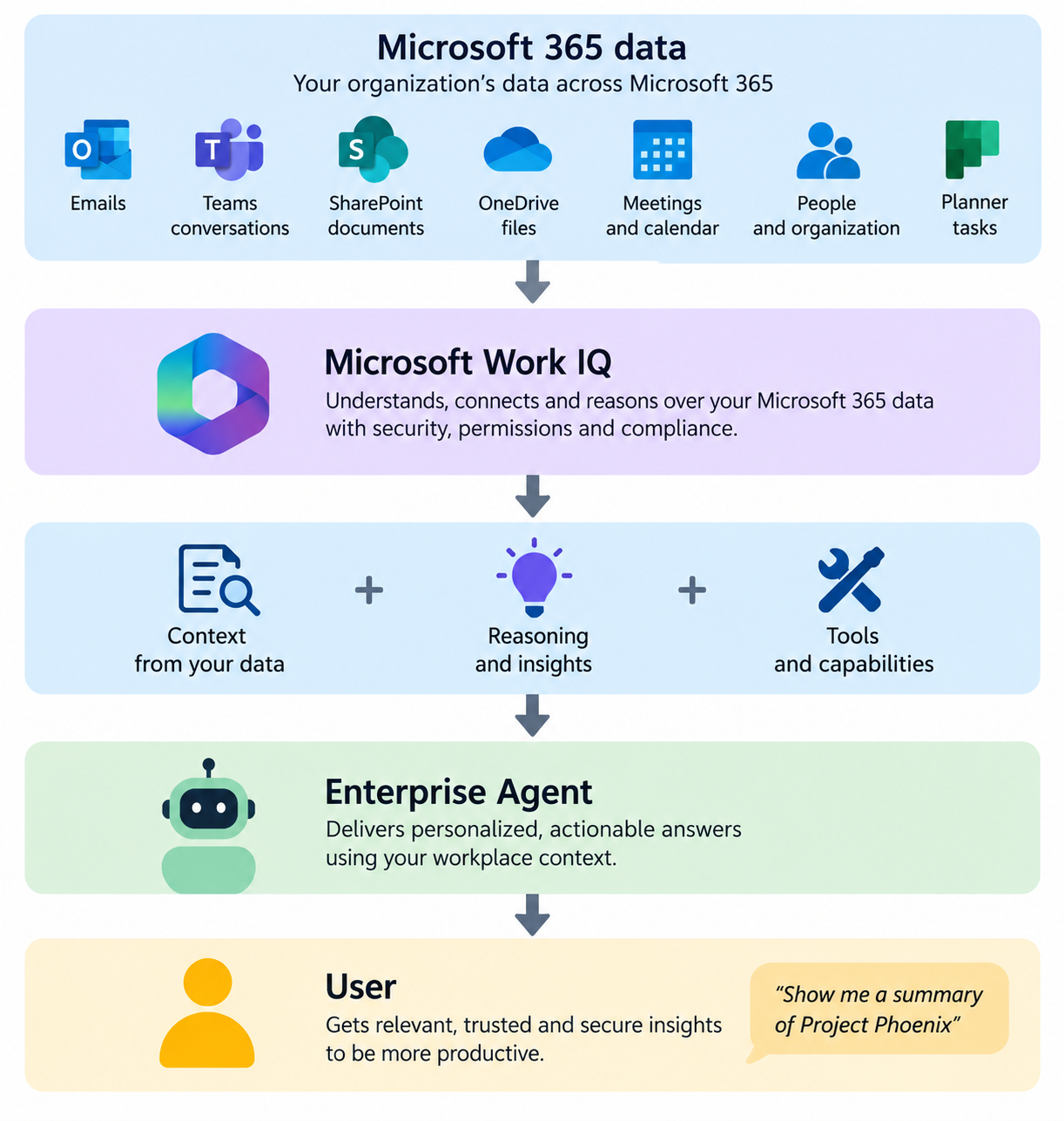
Historically, custom interactive SharePoint experiences often required SPFx development, Power Apps, or a separately hosted application. HTML pages can reduce that overhead for content-centric scenarios. Microsoft 365 Copilot can also generate an initial page from a natural-language prompt, helping business users produce layouts and interactions without manually writing all the code.
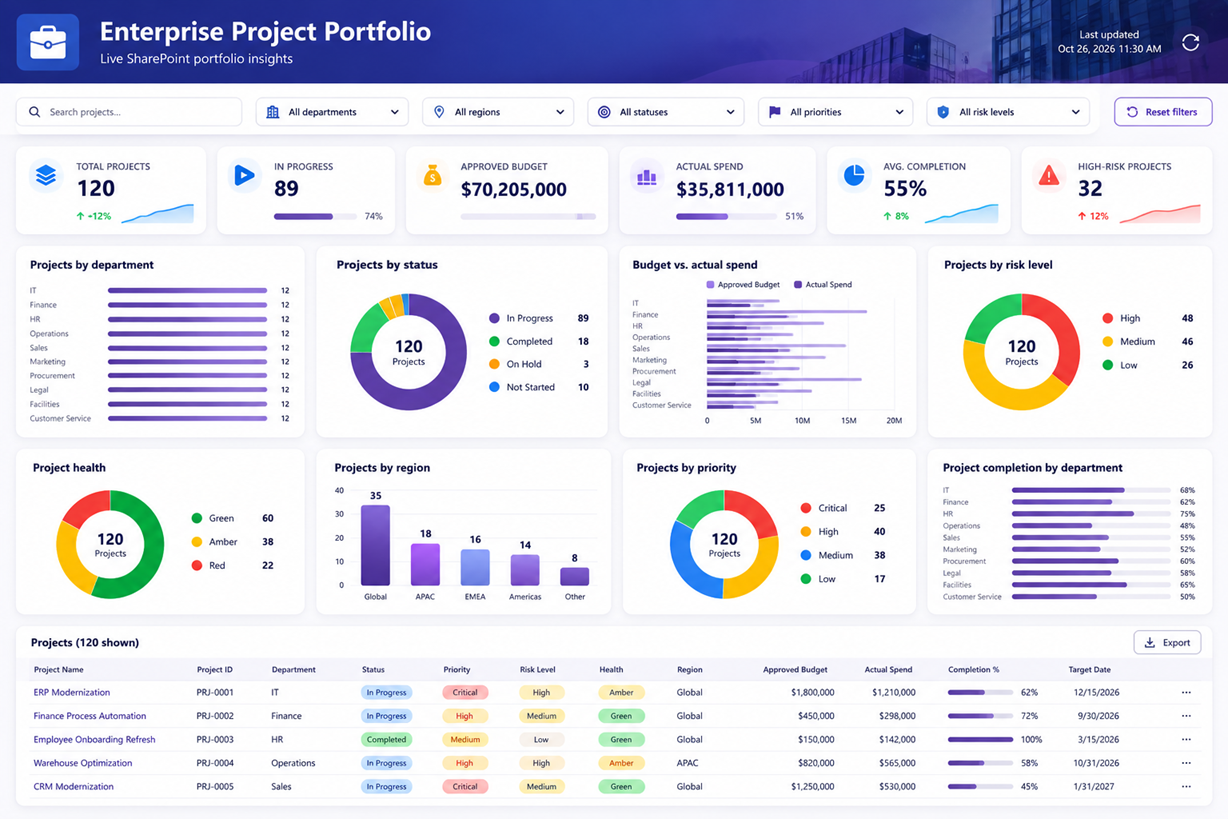
For example, a project manager could request a milestone dashboard with progress indicators and expandable updates. Copilot could generate an initial draft, which the author then reviews and refines.
Key Capabilities
Create HTML Pages with Microsoft 365 Copilot
Authors can describe the desired layout, audience, branding, and interactions. Copilot generates an HTML page that can be refined with follow-up prompts. Authors should review generated information and test the interactions before publishing.
- Open SharePoint site.
- Click New > HTML page
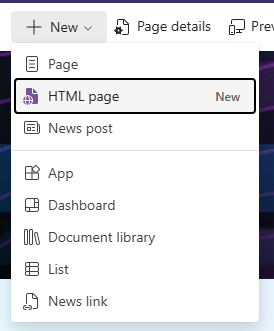
- HTML page can be created fresh using Copilot prompt or by uploading an existing HTML.
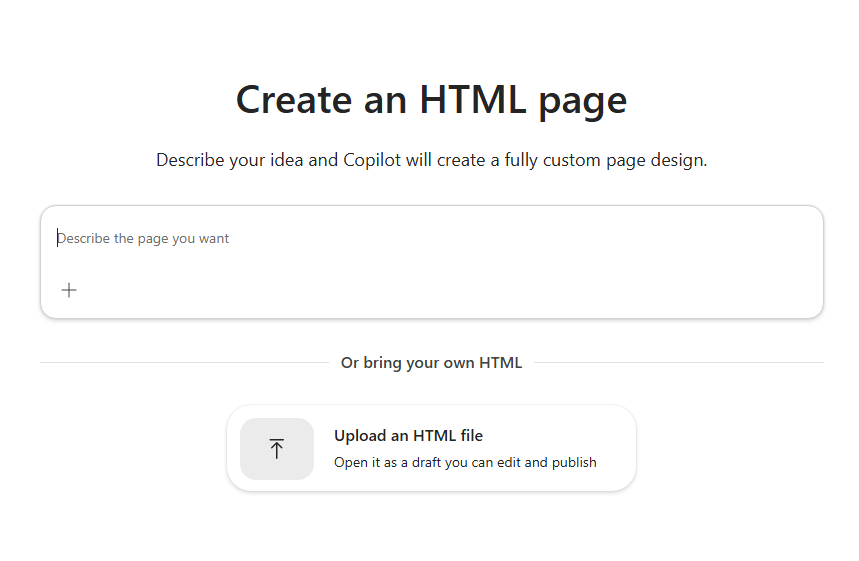
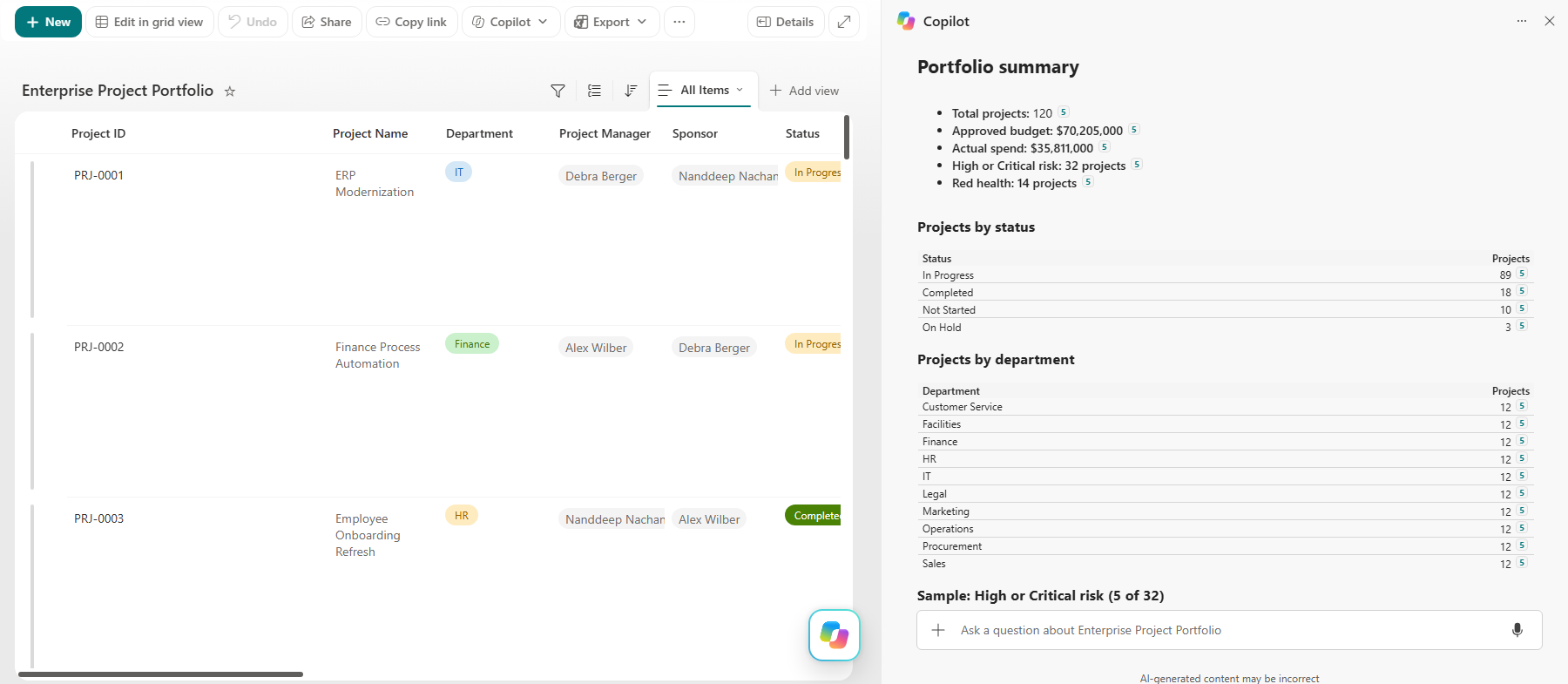
I will use the existing Enterprise Project Portfolio from previous article - From SharePoint Lists to Live AI Dashboards with Microsoft 365 Copilot
Example prompt:
Create a modern, interactive Enterprise Project Portfolio Dashboard as an HTML page using the existing Enterprise Project Portfolio SharePoint list.
Include KPI cards for total projects, project status, budget, spending, completion percentage, and high-risk projects. Add interactive charts showing projects by department, status, priority, risk level, health, and region. Include budget vs. actual spend comparisons and a searchable, filterable project table with progress bars and color-coded status indicators.
Use a professional, responsive design with Microsoft Fluent UI styling and SharePoint theme colors. Allow users to filter the dashboard by department, region, status, priority, and risk level.
Use actual SharePoint list data without generating sample data. Use supported SharePoint HTML page capabilities and clearly indicate if live data integration is unavailable.
Upload Existing HTML Content
Developers can prepare HTML content in Visual Studio Code or another editor and upload a single HTML file or an HTML folder containing supporting assets. This can help bring existing training materials, guides, and interactive resources into SharePoint. Uploaded content must meet SharePoint’s script and resource restrictions.
Edit Without Writing Code
Authors can make straightforward text edits directly. Licensed Copilot users can request more extensive design or content changes through natural language.
Add Interactive Elements
Supported experiences include tabs, accordions, filtering, expandable sections, charts, and other browser-side interactions. SharePoint supports selected libraries through a Microsoft-managed CDN, including Chart.js, Mermaid, React, Fluent UI, and Babylon. Arbitrary external scripts are not permitted.
Work with Supported Data Sources
HTML experiences can incorporate supported SharePoint list, Excel, and CSV data scenarios. This does not grant unrestricted API access: arbitrary fetch() calls, Microsoft Graph requests, or calls to external REST endpoints are not available from the sandbox.
Publish and Share in SharePoint
HTML pages reside in the Site Pages library and use SharePoint’s familiar publishing and permissions model. The surrounding SharePoint header, navigation, and footer help the content feel like part of the intranet. Publishing does not override permissions.
How to Create an HTML Page in SharePoint
Approach 1: Generate a Page with Copilot
- Open a SharePoint Online site where you have page-authoring permissions and the required Microsoft 365 Copilot license.
- Select + New → HTML page, or use the available Copilot/Publish creation entry point.
- Describe the page’s content, layout, interactions, and branding. Attach relevant source files when appropriate.
- Review the generated draft, check facts and links, and ask Copilot for refinements.
- Test the page and select Publish when ready.
Approach 2: Upload an Existing HTML Page
- Create an HTML file, ideally keeping custom CSS and JavaScript self-contained.
- Open the site’s Site Pages library.
- If necessary, use File types → Allow HTML files to enable HTML uploads for that library.
- Select Create or upload → Upload HTML page, or Upload HTML folder when supporting files are included.
- Open the uploaded page, validate rendering and interactions, and publish it.
If an existing HTML file resides elsewhere in SharePoint, supported Edit in SharePoint or Move to actions can bring it into the Site Pages publishing experience. Moving a file changes its original location.
Use Cases
| Use case | Possible experience |
|---|---|
| Employee onboarding | Interactive timelines, FAQs, and task lists |
| Project dashboards | Milestones, progress summaries, and status cards |
| HR benefits | Comparisons and eligibility guidance |
| Corporate training | Self-paced learning guides and quizzes |
| IT knowledge base | Searchable troubleshooting and decision trees |
| Policy awareness | Interactive summaries and guided explanations |
| Product catalog | Filterable cards and comparisons |
| Events | Agendas, speaker profiles, and session schedules |
| Brand guidelines | Interactive palettes and typography guidance |
Scenarios involving persistent user-specific progress, transactions, or external systems may require a more capable application platform.
HTML Pages vs. Modern SharePoint Pages vs. SPFx
| Capability | Modern SharePoint pages | HTML pages | SPFx |
|---|---|---|---|
| Authoring | Web parts | HTML or Copilot | Custom development |
| Layout flexibility | Web-part based | Flexible HTML/CSS | Highly flexible |
| Interactivity | Web parts | Supported client-side scripts | Custom components |
| External APIs | Via supported components | Restricted | Supported with appropriate permissions |
| Deployment | Publish page | Upload or Copilot | App catalog |
| Skills needed | Low | Low to medium | Medium to high |
| Best for | Standard intranet content | Rich interactive content | Enterprise applications |
A static or client-side interactive guide is a good candidate for HTML pages. A solution requiring Microsoft Graph calls, authenticated backend access, or complex transactions is generally better suited to SPFx or another supported platform.
Security and Governance
HTML pages run inside a sandboxed iframe, separating their content from the surrounding SharePoint interface. Content Security Policy restrictions control allowed resources and operations. This helps reduce the risks of executing arbitrary scripts.
Important considerations include:
- Arbitrary outbound API calls and
fetch()requests are blocked. - Arbitrary externally hosted JavaScript is not supported.
- Custom JavaScript should be embedded in the HTML file, except for specifically supported Microsoft-hosted libraries.
- Browser
localStorageis not available to the sandbox. - Cross-tenant communication is not supported.
- External navigation may require configuration in the site’s HTML Field Security allow list.
Organizations should define who can upload HTML pages, what review process is required, and how published content is maintained. Site owners can control HTML file support at the library level through Allow HTML files; a tenant-wide disable switch is not currently provided in the referenced guidance.
Licensing Requirements
| Activity | Microsoft 365 Copilot license required? |
|---|---|
| Generate an HTML page with Copilot | Yes |
| Refine the page with Copilot chat | Yes |
| Upload an existing HTML file | No |
| Edit text directly | No |
| Publish an HTML page | No |
| Share an HTML page | No |
| View a published HTML page | No |
Users still need the appropriate SharePoint permissions. This allows a smaller group of licensed authors to create Copilot-assisted pages for a larger intranet audience.
Current Limitations
| Area | Limitation |
|---|---|
| HTML file size | Maximum 10 MB, excluding separately uploaded assets |
| API access | Arbitrary outbound requests are restricted |
| JavaScript | Inline scripts and selected supported libraries |
| Data access | Supported integrations only, not general-purpose APIs |
| Co-authoring | Not supported |
| Scheduling | Page scheduling is not supported |
| News | Cannot promote HTML pages to news posts |
| Templates | Cannot save as reusable SharePoint page templates |
| Comments/reactions | Not supported |
| Branding | Not automatically applied to uploaded HTML |
| Amplification | Standard Teams/Viva Engage amplification is not supported |
Feature rollout and availability can vary by tenant. Confirm current behavior in your own environment before planning a production deployment.
What This Means for Developers and Content Authors
For developers, HTML pages provide a lightweight publishing path for rich informational experiences without SPFx packaging and deployment. For business authors, Copilot-assisted creation makes more sophisticated page designs accessible. For organizations, HTML pages offer a way to modernize existing interactive resources while retaining SharePoint publishing and permissions.
The choice should remain requirement-driven. HTML pages are strongest for content-focused experiences; SPFx and other application platforms remain important for advanced authentication, APIs, persistent data operations, and complex workflows.
Summary
HTML pages expand SharePoint Online’s publishing capabilities by combining flexible HTML/CSS, supported client-side JavaScript, and Microsoft 365 Copilot-assisted authoring. They can transform ordinary intranet resources into searchable, interactive, and visually engaging experiences while remaining within SharePoint’s content lifecycle.
Their sandbox, API restrictions, and publishing limitations are important design constraints. Treat HTML pages as a rich content publishing capability, not a universal replacement for enterprise application development.


Leave a comment