
Extend AI in SharePoint with Skills
Introduction
AI in SharePoint brings Copilot-like intelligence directly inside SharePoint sites and document libraries. It helps users work with content using natural language instead of manually opening documents, reading large files, creating metadata, or setting up rules step by step.
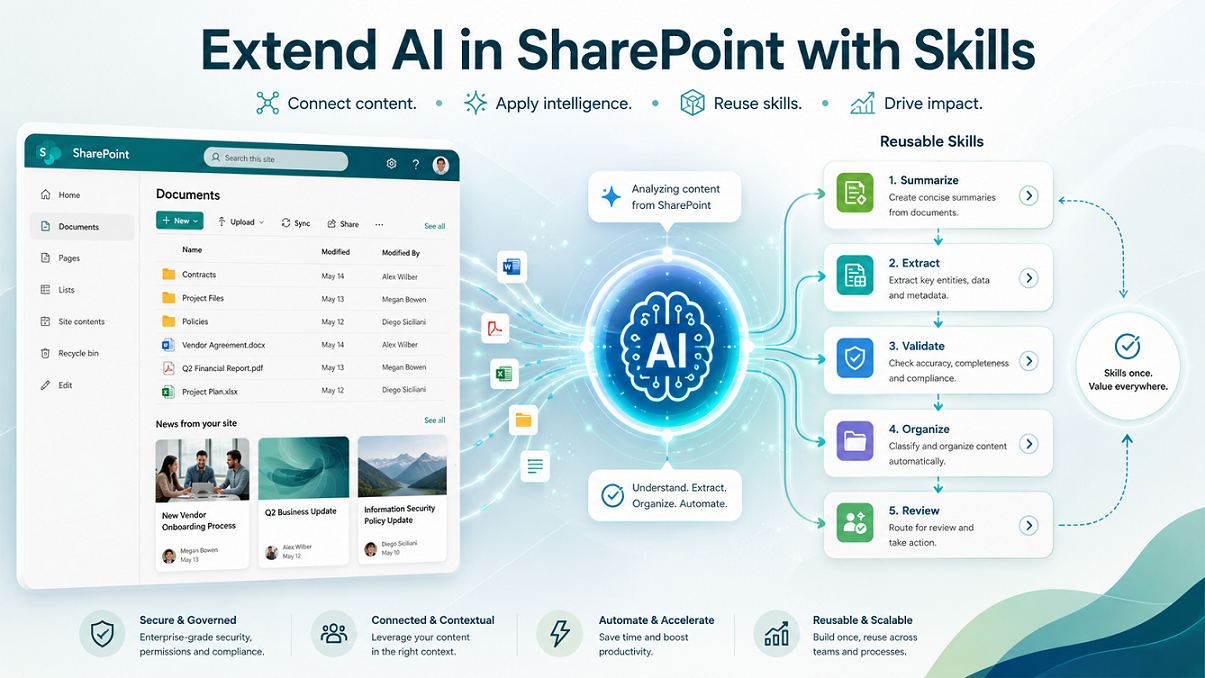
One of the powerful capabilities in AI in SharePoint is skills. A skill is a reusable AI instruction that captures a repeatable business process. Instead of asking AI the same detailed prompt again and again, users can create a skill once and reuse it whenever needed.
For example, if a legal team regularly reviews contract documents to check whether required clauses are present, they can create a skill for that review process. Later, any permitted user on the same SharePoint site can run that skill on selected documents.
Microsoft describes skills as a way to extend AI in SharePoint by turning a repeatable, multi-step workflow into a reusable asset that others can run on the same site. Skills can capture organization-specific rules such as document standards, review checklists, and validation steps.
What are skills in AI in SharePoint?
A skill is a reusable instruction set for AI in SharePoint. It tells the AI how to perform a specific task in a consistent way.
In simple words, a skill is like a saved prompt, but more structured and reusable. It can include steps, expected inputs, expected outputs, and business rules.
For example, a skill can be created to:
- Review contract documents.
- Check whether files follow naming standards.
- Extract key information from documents.
- Validate whether documents contain required details.
- Summarize selected files in a standard format.
- Organize files based on content.
- Work with SharePoint lists where supported.
Skills use the existing capabilities of AI in SharePoint. They do not add a completely new external system or custom code execution capability. Microsoft states that skills can reuse built-in AI in SharePoint capabilities and chain them into a sequence of steps. Depending on what is supported on the site, skills can understand and summarize content, organize files and folders, and interact with SharePoint content such as lists.
Why skills are useful
In many organizations, users perform the same content-related tasks repeatedly. These tasks may be simple, but they often require users to remember business rules or follow a checklist.
For example:
-
A finance team may need to check invoices before processing them.
-
A legal team may need to verify contracts before approval.
-
A project team may need to summarize project documents every week.
-
A compliance team may need to review policy documents against internal standards.
Without skills, every user has to write a detailed prompt each time. This can lead to inconsistent results because different users may describe the same task differently.
Skills help solve this problem by converting the task into a reusable asset. Once a skill is created, users can run it again with simpler prompts. AI in SharePoint can also automatically load a relevant skill based on the user’s request, or the user can call a skill explicitly by name.
How skills extend AI in SharePoint
Skills extend AI in SharePoint in three main ways.
1. They make AI reusable
A normal prompt is usually one-time. A skill can be saved and reused.
For example, instead of writing this long prompt every time:
Review these contracts and check whether each contract contains a lawyer ID in xxx-xxx format. If the contract does not contain the lawyer ID, add it to the Invalid Contracts list.
You can create a skill named Contract Validation Skill and later simply say:
Run Contract Validation Skill on these documents.
2. They make AI more consistent
Different users may write different prompts for the same task. This can produce different outputs.
A skill captures the standard process once. This helps the organization get more consistent results from AI.
For example, a policy review skill can always check the same sections, the same compliance points, and the same output format.
3. They make AI more business-specific
Generic AI prompts may not know your internal standards. Skills can include your organization’s own rules.
For example:
- Contract must contain lawyer ID.
- Invoice must contain vendor name, invoice number, purchase order number, and amount.
- Project document must include owner, timeline, risks, and status.
- HR policy must include effective date, policy owner, and review date.
This makes AI in SharePoint more useful for real business scenarios.
Prerequisites
Before using skills, AI in SharePoint must be available for the site.
-
Users need an active Microsoft 365 Copilot license. AI in SharePoint is included with this license during public preview and at general availability with no additional cost.
-
Activate site collection feature named “Agent Assets”.
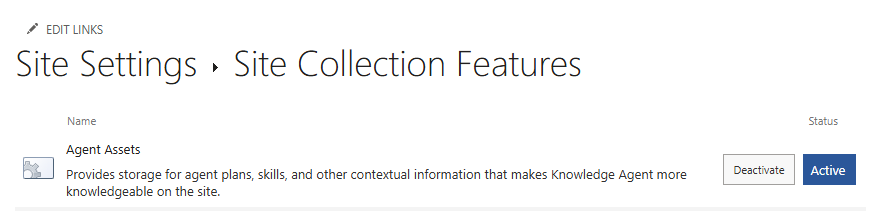
Activating the feature creates a document library named “Agent Assets” with 2 folders - Plans and Skills
Permissions required for skills
Skills follow SharePoint permissions.
- To create a skill, a user needs Edit permission on the SharePoint site.
- To run a skill, a user needs View permission on the SharePoint site.
If a different permission model is needed, organizations can break permission inheritance on the Agent Assets library and apply more restrictive permissions.
This is important because skills do not bypass SharePoint security. A skill can only perform actions that the current user already has permission to perform.
Where skills are stored
Skills are stored inside the SharePoint site in the Agent Assets library.
The storage path is:
/Agent Assets/Skills/<skill-name>/SKILL.md
Each skill is saved as a Markdown file named SKILL.md.
This is useful because skills become SharePoint content. They can be reviewed, governed, retained, labeled, and audited like other SharePoint files.
Microsoft states that the Agent Assets library is created and managed by the product and cannot be deleted. However, standard SharePoint file governance can be applied to skill files, including permissions, retention, sensitivity labels, and auditing.
How to create a skill
A skill can be created from the AI in SharePoint chat panel using natural language.
Step 1: Open AI in SharePoint
-
Open a SharePoint site page or a document library where AI in SharePoint is available.
-
Then open the AI in SharePoint chat panel.
-
The page should not be in edit mode.
Step 2: Describe the workflow
- Ask AI in SharePoint to create a skill by describing the task.
Example:
Create a skill to review project documents and check whether each document includes project owner, project timeline, risks, dependencies, and current status. If any document is missing these details, summarize what is missing and suggest improvements.
Step 3: Review the draft skill
-
AI in SharePoint generates a draft skill definition.
-
Review the steps carefully. This is important because the skill may be reused by other users on the site.
-
Check whether:
- The purpose is clear.
- The steps are correct.
- The inputs are clear.
- The output format is useful.
- The business rules are complete.
- The skill does not perform unwanted actions.
Step 4: Ask for changes if needed
You can ask AI in SharePoint to adjust the skill before saving it.
Example:
Update the skill to provide the result in a table format with columns for Document Name, Missing Information, Risk Level, and Recommended Action.
Step 5: Save the skill
-
Once the draft looks correct, confirm that you want to save the skill.
-
The skill is saved in the Agent Assets library of the site.
How to run a skill
A skill can be run from the AI in SharePoint chat experience.
Step 1: Select content
- In a document library, select one or more files that the skill should work on.
- This step is optional, but it is useful when testing a skill.
Step 2: Ask AI to perform the task
-
You can ask a natural language question or instruction that matches the skill’s purpose.
-
AI in SharePoint can automatically load the relevant skill based on the request.
Example:
Review these documents for project readiness.
If a matching skill exists, AI in SharePoint may load it automatically.
Step 3: Invoke a skill by name
You can also run a skill explicitly by name.
Example:
Run Project Readiness Review Skill on the selected documents.
Step 4: Confirm the skill was loaded
When the skill runs, the chat UI shows a skill indicator card. This helps users confirm that the required skill was loaded.
Example skill scenario: Contract validation
Let us understand skills with a practical example.
-
A legal department stores contracts in a SharePoint document library. Every contract must contain a lawyer ID in a specific format, such as ABC-123.
-
The team wants AI in SharePoint to review selected contracts and identify invalid contracts.
-
The user can create a skill with a prompt like:
Create a skill to review legal contract documents. Check whether each contract mentions a lawyer ID in xxx-xxx format, where x is an alphanumeric character. If a contract does not contain a valid lawyer ID, add the document name to the Invalid Contracts list. If the list does not exist, create it with relevant columns.
-
Once saved, users can later run:
Run Contract Validation Skill on the selected documents.
The benefit is that the legal validation process becomes reusable and consistent.
Example skill scenario: Project document review
A project management team may store project initiation documents, status reports, and risk logs in SharePoint.
The organization may require every project document to include:
- Project owner
- Business sponsor
- Timeline
- Scope
- Risks
- Dependencies
- Current status
A skill can be created to review selected documents and return a structured report.
Example prompt:
Create a skill to review project documents and check whether each document contains project owner, business sponsor, timeline, scope, risks, dependencies, and current status. Return the result in a table with document name, missing fields, risk level, and recommended action.
This helps project managers quickly identify incomplete documents.
Example skill scenario: Policy review
An HR or compliance team may need to check whether policy documents follow internal standards.
A skill can check whether each policy document contains:
- Policy name
- Policy owner
- Effective date
- Review date
- Approval authority
- Applicability
- Escalation process
Example prompt:
Create a skill to review HR policy documents. Check whether each policy includes policy owner, effective date, next review date, approval authority, applicability, and escalation process. Summarize missing information and suggest corrections.
This helps improve document quality before publishing.
Example skill scenario: Invoice validation
A finance team may receive invoices from multiple vendors.
A skill can help validate whether each invoice contains:
- Vendor name
- Invoice number
- Invoice date
- Purchase order number
- Amount
- Tax details
- Payment terms
Example prompt:
Create a skill to review invoice documents. Check whether each invoice contains vendor name, invoice number, invoice date, purchase order number, total amount, tax details, and payment terms. For incomplete invoices, provide a summary of missing information.
This can reduce manual review effort and improve finance process accuracy.
What skills cannot do
Skills are powerful, but they have boundaries.
Skills cannot connect to external systems or execute custom code. A skill can only perform actions the user already has permission to do. It does not expand access or introduce new capabilities beyond what AI in SharePoint provides.
This means skills cannot directly:
- Call an external API.
- Run custom scripts.
- Connect to third-party systems by themselves.
- Bypass SharePoint permissions.
- Access content the user is not allowed to access.
- Perform actions outside the capabilities of AI in SharePoint.
This is an important governance point. Skills are not custom plugins or external automation connectors. They are reusable AI instructions within the AI in SharePoint experience.
Skills vs prompts
A prompt is usually a one-time instruction.
A skill is a reusable instruction saved on the SharePoint site.
| Area | Prompt | Skill |
|---|---|---|
| Purpose | One-time request | Reusable task |
| Storage | Not saved as a reusable asset | Saved in Agent Assets library |
| Consistency | Depends on how user writes it | Standardized process |
| Reuse | User must write again | Can be run again |
| Governance | Limited | Can be managed as SharePoint content |
| Best for | Simple ad-hoc questions | Repeatable business process |
Skills vs Power Automate
Skills and Power Automate are not the same.
Power Automate is used to create event-based workflows, approvals, integrations, and business process automation across Microsoft 365 and external systems.
Skills are used to make AI in SharePoint perform repeatable content-related tasks using reusable instructions.
| Area | Skills in AI in SharePoint | Power Automate |
|---|---|---|
| Main purpose | Reusable AI task in SharePoint | Workflow automation |
| User experience | Natural language chat | Flow designer |
| Best for | Document understanding, summarization, review, organization | Approvals, notifications, integrations, scheduled jobs |
| External systems | Not supported directly by skills | Supported through connectors |
| Custom logic | Limited to AI in SharePoint capabilities | Can include conditions, loops, connectors, custom APIs |
| Execution | User-driven through AI experience | Trigger-based or manual |
In many scenarios, both can complement each other. For example, a skill can help review documents, while Power Automate can manage approval routing or notifications.
Relationship with AI-powered SharePoint rules
AI in SharePoint can also help users create document library rules using natural language.
For example, users can ask SharePoint to send an email, move a file, copy a file, or set a value based on conditions. Microsoft states that AI in SharePoint can help set up rules in a document library by describing the desired action using natural language. Supported rule actions include email, move, copy, and set value.
Skills are different because they focus on reusable AI instructions. Rules focus on automated library behavior when items are created, modified, or deleted.
A simple way to understand the difference:
- Use skills when users need a reusable AI review or content task.
- Use rules when the library should automatically react to content changes.
Governance considerations
Skills should be governed carefully because they can influence how users process business content.
1. Control who can create skills
By default, users with Edit permissions can create skills. For business-critical sites, organizations may want only site owners, knowledge managers, or content owners to create or modify skills.
This can be done by managing permissions on the Agent Assets library.
2. Review skill definitions
Since skills are stored as Markdown files, site owners can review the underlying skill file if needed.
However, if the file is edited directly, the format should be kept intact so AI in SharePoint can continue to interpret the skill correctly.
3. Apply retention and sensitivity labels
Skills are stored in SharePoint, so standard governance can apply.
Organizations can consider:
- Retention labels
- Sensitivity labels
- Auditing
- Permission reviews
- Version history
- Access reviews
4. Avoid over-permissioning
A skill cannot give users more access than they already have. Still, organizations should ensure that SharePoint permissions are correctly configured.
If users should not process confidential documents, they should not have access to those documents in the first place.
5. Test skills before broad use
Before making a skill available to a wider audience, test it with real-world sample documents.
Check:
- Does it understand the task correctly?
- Does it return consistent output?
- Does it ask for missing information when needed?
- Does it avoid unwanted changes?
- Does it work well with selected files?
Best practices for creating skills
1. Start with a clear purpose
Do not create a skill for a vague task.
Instead of:
Create a skill to review documents.
Use:
Create a skill to review vendor contract documents and check whether they include contract owner, effective date, expiry date, payment terms, termination clause, and liability clause.
2. Define input clearly
Mention what the skill should work on.
Example:
The skill should work on selected documents in the current document library.
3. Define output format
Ask for a clear output format.
Example:
Return the result in a table with columns: Document Name, Status, Missing Information, Risk Level, and Recommended Action.
4. Include business rules
Add organization-specific rules.
Example:
Mark the document as High Risk if it does not contain an expiry date or termination clause.
5. Keep the skill focused
Avoid creating one large skill that does everything.
It is better to create separate skills such as:
- Contract Review Skill
- Invoice Validation Skill
- Project Readiness Skill
- Policy Compliance Skill
Focused skills are easier to test, maintain, and trust.
6. Review before saving
Always review the draft skill before saving. Make sure it matches the intended process.
7. Name skills clearly
Use meaningful names.
Good examples:
- Contract Validation Skill
- Invoice Completeness Review Skill
- HR Policy Review Skill
- Project Status Summary Skill
Avoid generic names like:
- Test Skill
- Document Skill
- Review Skill
Use cases
-
Legal document review: Legal teams can create skills to check contracts for mandatory clauses, lawyer IDs, expiry dates, renewal terms, liability clauses, and missing approvals.
-
Finance invoice validation: Finance teams can use skills to check whether invoices contain required fields such as vendor name, invoice number, purchase order number, tax details, and payment terms.
-
HR policy quality check: HR teams can create skills to review policy documents and check whether they include owner, effective date, review date, applicability, and escalation process.
-
Project documentation review: Project teams can use skills to check whether project documents contain scope, timeline, risks, dependencies, owner, and current status.
-
Compliance checklist review: Compliance teams can use skills to review documents against internal standards before publishing or audit submission.
-
Knowledge base improvement: Support teams can create skills to review knowledge articles and check whether they include symptoms, cause, resolution, owner, and last reviewed date.
-
Sales proposal review: Sales teams can create skills to review proposals for customer name, business problem, solution summary, pricing assumptions, timeline, risks, and next steps.
-
Content publishing readiness: Communication teams can use skills to check whether publishing documents include title, summary, audience, approval status, owner, and publish date.
Example prompt templates
Contract review skill
Create a skill named Contract Validation Skill. This skill should review selected contract documents and check whether each document contains contract owner, effective date, expiry date, payment terms, termination clause, and liability clause. Return the result in a table with document name, validation status, missing information, risk level, and recommended action.
Invoice review skill
Create a skill named Invoice Completeness Review Skill. This skill should review selected invoice documents and check whether each invoice includes vendor name, invoice number, invoice date, purchase order number, total amount, tax details, and payment terms. Return incomplete invoices with missing fields and recommended action.
Policy review skill
Create a skill named HR Policy Review Skill. This skill should review selected HR policy documents and check whether each document includes policy owner, effective date, next review date, approval authority, applicability, and escalation process. Return the result in a table with missing details and improvement suggestions.
Project readiness skill
Create a skill named Project Readiness Review Skill. This skill should review selected project documents and check whether each document contains project owner, sponsor, scope, timeline, risks, dependencies, and current status. Mark documents as Ready, Needs Update, or High Risk.
Recommended implementation approach
Organizations should not enable skills randomly across all sites without planning. A better approach is to start small and expand gradually.
Phase 1: Identify candidate processes
Find document-heavy processes that are repeated often.
Examples:
- Contract review
- Invoice validation
- Policy review
- Project reporting
- Knowledge article review
Phase 2: Choose pilot sites
Enable AI in SharePoint for selected pilot sites instead of all sites.
This allows better control during preview.
Phase 3: Create initial skills
Create a small set of high-value skills with clear business owners.
Phase 4: Test with real documents
Run skills on sample files and validate the output with business users.
Phase 5: Apply governance
Review permissions, sensitivity labels, retention, and audit requirements.
Phase 6: Train users
Teach users how to run skills, how to interpret outputs, and when to escalate to human review.
Phase 7: Expand gradually
After successful validation, expand to more teams and sites.
Key limitations to remember
Skills are currently part of the preview version of AI capabilities in SharePoint. Microsoft notes that the article applies to the preview version, previously referred to as Knowledge Agent.
Important limitations include:
- The site must be opted in to AI in SharePoint preview.
- Users need proper licensing.
- Skills work only within AI in SharePoint capabilities.
- Skills cannot connect to external systems.
- Skills cannot execute custom code.
- Skills do not bypass SharePoint permissions.
- Skills are available only within the first-party AI in SharePoint experience by default.
- The Agent Assets library is product-managed and cannot be deleted.
Business benefits
Skills can provide many benefits to organizations using SharePoint.
Improved productivity
Users spend less time writing repeated prompts and manually reviewing documents.
Better consistency
Common business processes can be captured once and reused by many users.
Lower dependency on technical teams
Business users can create skills using natural language without building custom applications.
Better document quality
Skills can help detect missing information, incomplete documents, and quality gaps.
Stronger governance alignment
Because skills are stored in SharePoint, organizations can apply familiar SharePoint governance controls.
Faster adoption of AI
Skills make AI more practical because users can apply it to real daily work, not just generic questions.
Summary
Skills in AI in SharePoint help organizations convert repeatable content tasks into reusable AI-powered assets. They allow users to create structured, business-specific instructions using natural language and reuse them across future prompts.
Skills are especially useful for document review, contract validation, invoice checking, policy review, project document analysis, and knowledge base improvement.
They do not replace Power Automate, custom applications, or external integrations. Instead, they extend AI in SharePoint by making document-centric AI tasks more repeatable, consistent, and easier to use.
From a governance perspective, skills follow SharePoint permissions and are stored as Markdown files in the Agent Assets library. Organizations can apply standard SharePoint governance such as permissions, retention, sensitivity labels, and auditing.
For best results, organizations should start with focused business scenarios, create well-defined skills, test them with real content, and manage permissions carefully.
Leave a comment