

Using Microsoft Foundry Models in Copilot Studio
Introduction
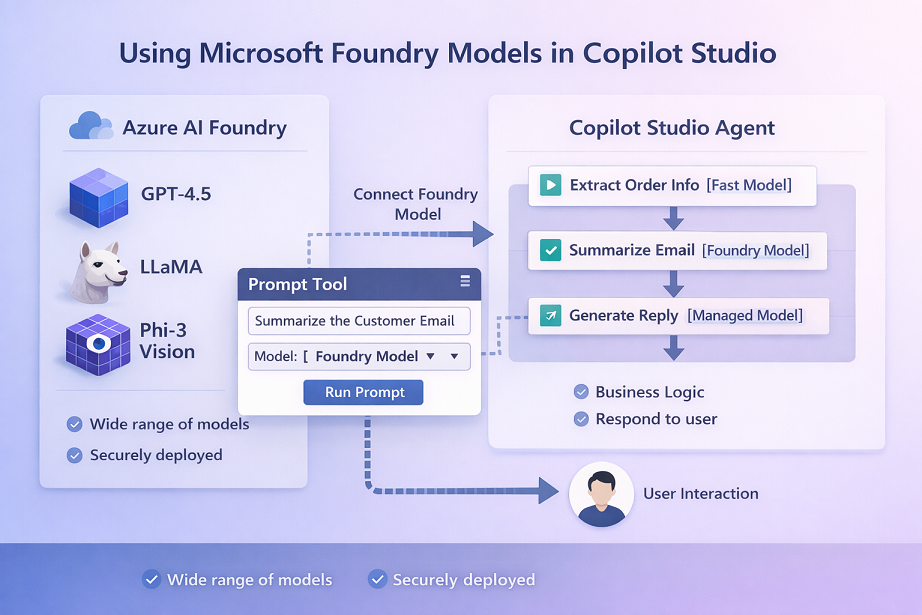
If you want your Copilot Studio agent to use a specific AI model (for example a model you deployed in Microsoft Foundry), you don’t need to build a custom connector or call an API manually for many scenarios. Copilot Studio now supports “Bring your own model for your prompts”-a native way to connect Microsoft Foundry models and use them directly inside Prompt tools / prompt actions.
What “Bring Your Own Model for Prompts” Actually Means
Copilot Studio has a Prompt tool (prompt action). When you create a prompt, you can select which model should run that prompt.
- By default, you see managed models.
- With this feature, you can connect models from Microsoft Foundry / Model catalog and pick them in the prompt’s Model dropdown.
[!NOTE]
You’re not replacing the whole agent’s brain globally.
You’re choosing which model runs a specific prompt action inside your agent.
Key Capabilities
1) Large model choice via Microsoft Foundry Model Catalog
Microsoft highlights access to models such as GPT 4.5, Llama, DeepSeek, and 11,000+ more through Microsoft Foundry’s model catalog-available to use in Copilot Studio prompts through this integration.
2) Prompt can be added as a tool or inside a topic
You can add a prompt:
- from the Tools tab (Add a tool → choose an existing prompt or create a new one), or
- inside Topics by adding a node and creating a New prompt.
3) Supports chat-completion type models (important limitation)
At the time of the documentation update, it currently supports models with chat completion type.
Step-by-Step: Use Microsoft Foundry Model in a Copilot Studio Prompt
Step 1: Create (or open) an agent in Copilot Studio
Microsoft’s flow starts with creating an agent (Agents → New agent → “Skip to configure”, then fill details and create).
Step 2: Add a Prompt tool (prompt action)
In Copilot Studio:
- Go to New tool → Prompt
- Give your prompt a name
- Add instructions either by writing your own prompt OR letting Copilot suggest one and selecting “Keep it”.
Step 3: Connect an Microsoft Foundry model to the prompt
On the right panel (next to prompt instructions):
- Open the Model dropdown
- Select the plus (+) to connect a model from Microsoft Foundry
- In the “Connect a model from Microsoft Foundry” screen, enter:
- Model deployment name
- Base model name
- Important: these must match exactly as they appear in Microsoft Foundry
- Select Connect
Step 4: Use the model in your agent
Once connected:
- The model appears in the Model dropdown
- Select it for the prompt
- Add that prompt into your agent flow
Microsoft clearly states: Anytime this prompt runs, it always uses the selected model.
Working with Images and Documents (When Relevant)
If your prompt includes image input, Copilot Studio will only show Microsoft Foundry models that support image/document usage. Microsoft lists examples like Phi vision models and GPT-4o/GPT-4.5-preview among those that work with images.
(If your use case is purely text, you can ignore this and just focus on chat-completion models.)
Governance and Administration (Very Important for Enterprises)
1) It uses a Connector
Microsoft Foundry models are “connected by connectors.”
2) Control with Power Platform Admin Center policies
You can manage governance for this connector in Power Platform admin center → Policies, under the connector name “Microsoft Foundry”. Microsoft calls out that you can add a specific data policy (DLP) for these models (and manage it alongside tenant data policies).
3) Connections are visible like other Power Platform connections
Each model connection a maker sets up is also available as a connection (similar to how Power Apps connections appear).
4) Responsible AI (RAI)
Microsoft recommends applying Responsible AI (RAI) policies for the models you use and managing that in Microsoft Foundry.
Design Pattern: How to Structure Prompts When You Bring Your Own Model
When you start choosing different models for different prompts, a simple pattern works best:
- One prompt = one “job”
- Example: “Summarize customer email”
- Separate prompt: “Extract order number and dates”
- Use the right model per job
- Lower-cost / faster model for extraction or formatting
- Strong reasoning model for complex decision support
- Keep the prompt stable
- Remember: your prompt will always run on the selected model
- So changes in model selection can change behavior; treat model choice like a “configuration decision”.
Use Cases
1) Industry-specific assistant (Healthcare / Legal / Finance)
- You choose a model that best fits domain language or compliance needs (through Foundry catalog)
- Use prompts for summarization, classification, or drafting, while still keeping the agent logic in Copilot Studio
2) Multi-model strategy inside one agent
Within the same Copilot Studio agent:
- Prompt A uses a fast model for “extract entities”
- Prompt B uses a stronger model for “generate final response”
This is possible because model selection happens per prompt tool.
3) Controlled rollouts and governance
Because Foundry models are connected via a connector and can be governed via DLP policies in Power Platform admin center, you can:
- allow only approved teams to use the connector
- restrict usage in certain environments (Dev/Test/Prod)
- enforce compliance boundaries
Summary
Microsoft Copilot Studio now allows organizations to bring their own Microsoft Foundry models directly into prompt actions, giving enterprises greater control over which AI model powers each specific task inside an agent.
Instead of relying only on default managed models, makers can connect a model deployed in Microsoft Foundry by selecting it in the Model dropdown within a Prompt tool, entering the correct deployment and base model names, and using it immediately inside agent flows. Every time that prompt runs, it consistently uses the selected model—enabling predictable behavior and controlled AI design.
Leave a comment